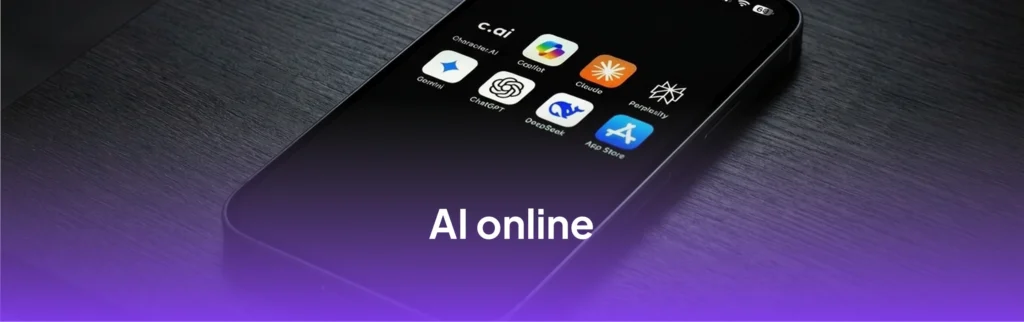
If you’re here because, after updating your phone, Gemini started popping up instead of Google Assistant when you hold down the power button, the answer is simple. You can turn it off, and there are several settings to adjust: the button, voice activation, the lock screen, and the default assistant in the system. You’ll find the instructions in the next section.
Gemini is Google’s AI-powered assistant, which is gradually replacing Google Assistant on mobile devices. Google announced this officially, and the change wasn’t made at users’ request—it came with an update. It’s perfectly understandable if this annoys you, and this article won’t try to convince you otherwise.
All the steps below are taken from the official support pages of Google, Samsung, and Xiaomi and were verified on October 8, 2026. Interfaces change frequently, so if you don’t see a particular option, use the search bar directly in the Settings app.
How to Turn Off Gemini on an Android Phone
There isn’t a single toggle to turn off Gemini. Google has integrated it into four different locations, each with its own settings. Go through them from top to bottom and stop when you reach a configuration that works for you.
1. To prevent Gemini from opening when you hold down the power button
This is why most people come here. Follow the steps from Google’s official support, verified as of October 8, 2026:
- Open Settings.
- Tap System → Gestures → Hold Power Button.
- Select the action to perform when you hold down the power button.
Google notes that the Digital Assistant option opens the default digital assistant app. If you want holding down the power button to bring up the standard power menu, select that option.
Google itself notes that this procedure varies by device manufacturer. If you don’t see the System → Gestures options, open Search in Settings and enter “power button,” “side button,” or “gesture.”
2. To prevent Gemini from opening when you speak
If you don’t want the assistant to launch when you say “Ok, Google” in the room:
- Open the Gemini mobile app.
- On the left, tap the menu → your profile photo or initial → Settings → Talk to Gemini hands-free.
- Turn off “Ok, Google.”
Verified as of October 8, 2026. Note on terminology: The Slovak interface uses “Ok, Google,” while the English interface uses “Hey Google.” These refer to the same setting.
3. To prevent Gemini from opening on a locked phone
Gemini can respond on many devices without unlocking them. If it’s triggering in your pocket or you simply don’t want it to listen to anything on the locked screen:
- Open the Gemini mobile app.
- On the left, tap the menu → your profile photo or initial → Settings → Gemini on Lock Screen.
- Turn off “Use Gemini without unlocking.”
Verified as of October 8, 2026. Google notes the following regarding this step: if you’ve already turned off both voice and touch activation, you’ll need to unlock your phone and open the app manually to use Gemini. That’s exactly what most people want in this situation.
4. Removing Gemini as the default assistant
This is the most drastic option, which does not require uninstallation. It disables the assistant as a whole, not just Gemini:
- Open Settings.
- Tap Apps → Default Apps → Digital Assistant.
- Tap Default Digital Assistant.
- Select a different assistant app or the None option.
Verified as of October 8, 2026. Google adds that if you use Google Assistant or Gemini, Google is selected in this list. If you can’t find the setting, search for “digital assistant app” in Settings.
The None option is for people who have never used an assistant before and want to be free of the entire category. Once you set this, voice control and assistant shortcuts will also stop working.
How to Disable Gemini on a Samsung Phone
Samsung has its own user interface and custom menu labels, so the steps for stock Android only partially apply. Samsung’s official support provides two separate procedures, and you must complete both.
Change the default assistant. According to Samsung’s official support page: Settings → Apps → Choose default apps → Digital assistant app → select Digital assistant app again, then choose a different option from the menu and confirm with OK.
Changing the side key behavior. Samsung notes that changing the default assistant alone is not enough, because the side key retains its own settings. Go to Settings → Advanced features → Side key. Under the Press and hold option, Samsung lists the available choices as Wake Bixby and “Power off menu.”
Important note regarding reliability: The item names above are copied from the English version of Samsung’s official support site, verified as of October 8, 2026. I was unable to verify the Slovak version of these same pages, so I am not listing the Slovak translations of the menu items to avoid making them up. In the Slovak interface, use the search field in Settings to look for the words “assistant” and “side button.”
A second note that’s often overlooked on Samsung devices: Bixby may also be a factor on Galaxy devices. If, after changing the default assistant, the side button still opens something you didn’t intend, check to see if Wake Bixby is assigned to “Press and hold.”
How to Disable Gemini on a Xiaomi Phone
On Xiaomi devices running HyperOS, the assistant launch is hidden in a different location than on stock Android. Xiaomi’s official support page has instructions for this, written as a guide for enabling Gemini. To disable it, simply toggle the same switch to the opposite position.
According to the official Xiaomi support page (FAQ for the Xiaomi 14T model), verified on October 8, 2026:
- Settings
- Additional settings
- Gesture shortcuts
- Launch digital assistant
- Toggle: Press and hold the Power button for 0.5s
If you turn off this toggle, holding down the Power button will no longer launch the digital assistant. Xiaomi also notes that Gemini must be set as the system’s default voice assistant for this button to work at all. This leads to the second option: change the default assistant by following the steps in the section above.
Again, a note on accuracy: this Xiaomi support page specifically refers to the Xiaomi 14T model and is in English. Xiaomi does not have a public guide with the same steps for its entire product portfolio, and I was unable to verify the Slovak translations of the menu items on the official website. The path Settings → Additional Settings → Gesture Shortcuts is the same on most HyperOS devices, but I’m intentionally not listing the exact Slovak names of the menu items here as verified. If you can’t find them, use the search function in Settings and enter “assistant.”
How to Uninstall Gemini and Whether You Can Reinstall Google Assistant
Uninstalling the App
You can remove Gemini from your phone just like any other app, using the standard app uninstallation process in Android. Google notes one thing in its support documentation that will surprise quite a few people: uninstalling the app does not automatically remove Gemini as the device’s default digital assistant. Verified as of October 8, 2026.
This means that simply uninstalling the app may not resolve the issue with the button. It’s better to do the opposite: first, change the default assistant and the power button settings, and only then decide whether you want to uninstall the app at all.
On some devices, Gemini is preinstalled by the manufacturer, and a full uninstallation may not be available; only the option to disable the app is usually available. You can check if this applies to your model in Settings → Apps → Gemini. If you see only the option to disable the app instead of an uninstall button, this is the case.
Returning to Google Assistant
Google’s official support guide for switching back still lists the following steps, verified as of October 8, 2026:
- Open the Gemini mobile app.
- On the left, tap the menu → your profile photo or initial → Switch to Google Assistant → Google Assistant.
- In the Do you want to switch to Google Assistant? dialog box, tap Switch.
Google also explains what will happen after the switch. Google Assistant will respond to both “Ok, Google” and a long press of the power button. If you have “Online and App Activity” turned on, data from your interactions with the Assistant will be saved to your Google Account. And importantly: data already saved in your Gemini app activity won’t be automatically deleted—you’ll need to delete it yourself. The section on data below explains how to do this.
However, there’s one unpleasant thing to note here. In its official announcement, Google stated that the classic Google Assistant will no longer be available on most mobile devices or for new downloads in app stores. Therefore, the Switch to Google Assistant option may not appear at all on devices where the transition has already been fully completed. If you don’t see it in the app, you’re not looking in the wrong place—your phone simply doesn’t have it. In that case, you’re left with the four methods from the first section: disabling the button, voice commands, the lock screen, and the default assistant.
Exception: Google states that on devices that do not meet the minimum system requirements for Gemini, Google Assistant functionality remains unchanged for now. Google specifies a minimum of 2 GB of RAM and Android 10 or later.
What Gemini Is and Where It Comes From on Your Phone
Gemini is an assistant built on Google’s generative models. Unlike Google Assistant, which operated as a set of commands with predefined responses, Gemini generates text. It can therefore handle more complex questions and even come up with its own responses—something the Assistant couldn’t do because it lacked the capability.
It was rolled out to phones via an update. Google announced that it is gradually transitioning users on mobile devices from Google Assistant to Gemini and that the classic Assistant will no longer be available on most mobile devices. The same transition applies to tablets, devices connected to phones—such as headphones and smartwatches—and Android Auto.
In practice, this means three changes for the average user. Holding down the power button opens a different interface. Some of the commands that worked with the Assistant now behave differently. And conversations are saved to your Google Account in a different location and with a different retention policy, which is covered in a separate section.
In the European Economic Area and Switzerland, the Gemini app is provided by Google Ireland Limited; elsewhere, it is provided by Google LLC. This is stated in the privacy notice, last updated on June 29, 2026.
How to Enable Gemini
The opposite situation, for which search volume has recently jumped by 758%. For some, Gemini disappeared after an update; others turned it off and now want it back.
App. You can download Gemini from the Play Store. On an Android mobile device, you must sign in with a Google Account; you cannot use the mobile app without signing in. You can sign in with a personal Google account, a work Google account with a compatible version of Workspace, or a school account, which must be approved by the institution’s administrator.
Set as the default assistant. Settings → Apps → Default apps → Digital assistant → Default digital assistant, then select Google.
Power button. Settings → System → Gestures → Press and hold the power button, then select Digital Assistant. On Xiaomi devices running HyperOS, go to Settings → Additional settings → Gesture shortcuts → Launch digital assistant and toggle on the Press and hold the Power button for 0.5s switch.
Voice and Lock Screen. In the Gemini app, go to Menu → Profile Photo → Settings and enable Talk to Gemini Hands-Free and, if desired, “Gemini on Lock Screen.”
All verified as of October 8, 2026.
Age restriction: To use Gemini with a paid Google AI plan in the European Economic Area, Switzerland, or the United Kingdom, you must be at least 18 years old. In other countries, the age limit is 13 or the age required by law in that country. Account administrators using Family Link can disable access to Gemini apps for children under 13 in the Family Link settings.
How to Use Gemini for Something Useful
A list of features won’t help you. What will help are specific tasks where the tool saves you time and, at the same time, doesn’t easily make mistakes in ways you might not notice.
Rewrite something you already have. You have a finished text and need to shorten, polish, or rephrase it. You provide the input, and you can check the output with a single read-through. This is the most reliable use.
Summarize a long document that you upload. You can upload files to Gemini and have it generate a summary or answers to questions from them. Important detail: On the free plan, Gemini has a 32,000-token context window, which is roughly dozens of pages, not hundreds. With a longer document, it won’t tell you that it missed a section, but the summary will be incomplete.
Create a first draft. A presentation outline, an email template, a list of interview questions. A first draft is inexpensive, and you’ll rewrite it anyway. Sending it without editing is a mistake that the reader will notice.
Generate a structured file. Gemini can format the output directly into a document or spreadsheet. Official support lists support for Google Docs and Sheets, .pdf, .docx, .xlsx, .csv, LaTeX, TXT, RTF, and Markdown. Example prompt: “Create a spreadsheet showing my students’ progress in math and their weekly scores.” Verified as of October 8, 2026.
Translate and adjust the tone at the same time. Translation combined with register adjustment, for example, from informal English to formal Slovak.
What not to rely on: dates, prices, paragraph numbers, names, and links. Google itself states in its support documentation that Gemini applications can make mistakes and that responses should be verified and not relied upon in cases requiring expert advice. When conducting factual research using the sources listed above, it makes sense to also look at other types of tools; you can find a comparison in our overview of AI tools and in a separate article about Perplexity.
Free Version vs. Paid Plans
All information in this section was verified on Google’s official website as of October 8, 2026. Prices change frequently, so always check the current status before making a decision.
What You Get for Free
According to Google’s official support, without a paid plan, you have access to all three models in the Gemini 3 family: Flash-Lite, Flash, and Pro. The difference isn’t in access to the model, but in how much you can use it and how much text it can process at once.
- Usage limits: standard. Google states that the limit resets every five hours until you reach the weekly limit.
- Context window: 32,000 tokens.
Google also notes that limits are subject to change and access may be restricted for testing or availability reasons.
Paid Plans and Prices
Prices verified on the Slovak version of the Google One website on October 8, 2026:
| Plan | Price | Limits | Pop-up window | Storage |
|---|---|---|---|---|
| No AI plan | 0 € | Standard | 32,000 tokens | 15 GB (Google Account) |
| Google AI Plus | €4.99/month | 2× Standard | 128,000 tokens | 400 GB |
| Google AI Pro | 21.99 €/month | 4× Standard | 1 million tokens | 5 TB |
| Google AI Ultra | Starting at 99.99 €/month | 5× or 20× AI Pro limits depending on the plan | 1 million tokens | Starting at 20 TB |
For Google AI Ultra, the website displays a range of €99.99–219.99 per month depending on the selected plan.
One discrepancy worth noting, as it can be confusing when comparing prices. The Google AI pricing overview page lists Google AI Plus with 400 GB for €4.99 per month. The Google One pricing overview page lists Google AI Plus (2 TB) for €9.99 per month. We viewed both pages on the same day, October 8, 2026, and Google does not explain anywhere how they are related. These could be two versions of the same plan with different storage capacities, or it could just as easily be outdated information on one of the pages. Until Google clarifies this, check the specific price directly in the order form, not in the plan overview.
What the Paid Plan Offers Beyond the Basic Limits
In addition to higher limits and a larger context window, Google states that some features are only available with Google AI subscriptions, and that more resource-intensive features—such as media generation or Deep Research—consume more of your quota. The only feature for which official support explicitly states a requirement for a specific plan is Deep Think, which is available only in Google AI Ultra and requires the Pro model.
Gemini also allows you to set the level of reasoning. Standard reasoning is the default, and responses are faster. Advanced reasoning is designed for more complex problems, and the model spends more time thinking about the prompt. Google notes that more advanced models and higher reasoning levels consume more of your quota.
A practical takeaway for the average smartphone user: the free version is sufficient for rephrasing text, short summaries, and initial suggestions. It makes sense to pay if you regularly hit the limit or work with long documents where 32,000 tokens aren’t enough.
What Happens to What You Write in Gemini
This section is the reason why some people turn off Gemini, and the figures here are from the privacy notice in the Gemini apps, verified as of October 8, 2026. The Privacy Information Center was last updated on September 24, 2026, and the privacy notice itself on June 29, 2026.
Who Reads This
Google states that a portion of chats are reviewed by moderators, including service providers trained by Google, to help improve its services. Moderators assess the quality of responses and suggest improvements, which are then used to refine the models. Reviewed chats are retained for up to three years. Google adds that chats are disconnected from your account before being sent to service providers.
Google puts it plainly: if you have the “Keep Activity” setting turned on, do not enter any confidential information or data that you do not want any reviewer to see and that you do not want Google to use to improve its services. This applies to health data, internal company numbers, social security numbers, and contracts.
How long is it stored?
For users 18 years of age and older, the Keep Activity setting is turned on by default. Activity older than 18 months is automatically deleted, though you can change this period to 3 or 36 months, or turn off automatic deletion entirely.
If you turn off the “Keep Activity” setting, conversations are still retained in your account for 72 hours. Google explains that it needs this to provide context from the last 24 hours, protect its services, and process any feedback. These chats will not appear in your activity.
How to turn it off
Follow the steps from official support, verified as of October 8, 2026:
- Go to gemini.google.com.
- Click on “Activity.”
- At the top, click On → Turn Off or Turn Off and Delete Activity.
You can change the automatic deletion settings in the same place by selecting Delete activity older than … months or “Choose an automatic deletion option,” where you can select 3, 18, or 36 months, or “Do not automatically delete activity.”
There are two consequences that Google mentions and that are worth knowing. If “Keep activity” is turned off, the gems you create will still be saved to your account, but the chats associated with them will not. And if this setting is turned off but you still submit feedback, Google will collect and use your feedback, the context—including chats from the past 24 hours—and all content within them, such as uploaded files.
An alternative to turning off the setting completely is to use ephemeral chats, which, according to Google, are not used to train models. However, even these are retained for 72 hours.
Work and school accounts operate under a different policy. Activity in Gemini apps is controlled by the Google Workspace administrator, and users may not be able to change retention settings or determine how long their chats are retained.
In a Nutshell for Businesses
In a business setting, Gemini makes the most sense where Google Workspace is already in use. Gemini in Gmail, Docs, and Sheets eliminates the need to switch between windows, and that’s the only reason that really matters in practice. If a company runs on Microsoft 365 or its own infrastructure, the benefit of integration disappears, and Gemini becomes just one of many interchangeable chat tools. When making a decision, the issue of data management is more important than comparing models: for a work account, chat storage is configured by the Workspace administrator, not the user, and this must be resolved before deployment, not after.
Another tool makes sense when the output involves research with verifiable sources, in-depth document analysis beyond the scope of a context window, or working with code. You can find a comparison based on task type rather than vendor in our overview of AI tools. If you need your team to learn how to use these tools to achieve measurable results, check out our AI training for businesses or contact us via the contact form.
Frequently Asked Questions
How do I permanently disable Gemini via the power button? Open Settings → System → Gestures → Long-press power button and select an action other than Digital Assistant. On Xiaomi devices, go to Settings → Additional settings → Gesture shortcuts → Launch digital assistant and disable the toggle when holding down the power button. On Samsung devices, go to Settings → Advanced features → Side key and change the behavior for “Press and hold.” Verified as of October 8, 2026.
Will Gemini be disabled when I uninstall the app? Not exactly. Google’s support page states that uninstalling the Gemini mobile app does not automatically remove Gemini as the device’s default digital assistant. First, change the default assistant, then uninstall the app. On some devices, uninstallation isn’t even an option because Gemini is preinstalled by the manufacturer, and the system only allows you to disable the app. Check this in Settings → Apps → Gemini.
How do I switch back to Google Assistant? In the Gemini app, tap the menu → your profile photo → Switch to Google Assistant → Google Assistant, and then confirm “Switch” in the dialog box. Verified as of October 8, 2026. However, Google has announced that the classic Assistant is no longer available on most mobile devices, so this option may not appear at all on devices that have already been switched over.
How do I turn off Gemini on a Samsung device? There are two steps to follow. Change the default assistant via Settings → Apps → Choose default apps → Digital assistant app, and change the side key behavior via Settings → Advanced features → Side key, where you select a different option under “Press and hold.” The names are taken from the English version of Samsung’s official support documentation, verified as of October 8, 2026.
How do I disable Gemini on a Xiaomi device? Go to Settings → Additional settings → Gesture shortcuts → Launch digital assistant and turn off the “Press and hold the Power button for 0.5s” toggle. This procedure is from Xiaomi’s official support for the Xiaomi 14T model, verified as of October 8, 2026. Complete the process by changing the default assistant in Settings → Apps → Default apps → Digital assistant.
How do I prevent Gemini from listening to me? In the Gemini app, tap the menu → your profile photo → Settings → Talk to Gemini hands-free and turn off “Ok, Google.” You can also disable Gemini separately on the lock screen by toggling off “Use Gemini without unlocking.”
Does anyone read my conversations with Gemini? Yes, some of them. Google states that a certain portion of chats are reviewed by moderators, including trained service providers, and that reviewed chats are retained for up to three years. According to Google, chats are disconnected from your account before being sent to service providers. Google itself recommends not entering sensitive information while the “Save Activity” setting is turned on.
How do I turn off the saving of my conversations? On gemini.google.com, open Activity, click “On” at the top, and select “Turn Off” or “Turn Off and Delete Activity.” Even after turning it off, conversations are retained in your account for 72 hours.
Is Gemini free? Yes, in its basic version. According to Google, without a paid plan, you have access to all three Gemini 3 models with standard limits and a 32,000-token context window. The paid Google AI Plus, Pro, and Ultra plans increase the limits and context window. Verified as of October 8, 2026.
How do I enable Gemini if I want to use it? Download the app from the Play Store, sign in with your Google account, and set it as your default digital assistant in Settings → Apps → Default apps → Digital assistant. To enable launch via the power button, go to Settings → System → Gestures → Hold Power Button and select “Digital Assistant.”
Resources
- Manage or remove the Gemini app on an Android device, Google Help: https://support.google.com/gemini/answer/16938321?hl=sk
- Manage and remove activity in Gemini apps, Google Help: https://support.google.com/gemini/answer/13278892?hl=sk
- Privacy Center for Gemini apps, Google Help: https://support.google.com/gemini/answer/13594961?hl=sk
- Gemini App Limits and Higher Plans for Google AI Subscribers, Google Help: https://support.google.com/gemini/answer/16275805?hl=sk
- Using Gemini apps (Android), Google Help: https://support.google.com/gemini/answer/13275745?hl=sk&co=GENIE.Platform%3DAndroid
- Manage Google AI plans from Gemini apps, Google Help: https://support.google.com/gemini/answer/14517446?hl=sk
- Google AI plans with Cloud Storage, Google One: https://one.google.com/about/google-ai-plans/?hl=sk
- Google One plans: https://one.google.com/about/plans?hl=sk
- Gemini is replacing Google Assistant on mobile, Google blog: https://blog.google/products/gemini/google-assistant-gemini-mobile/
- Change the AI assistant on your Galaxy phone, Samsung Support: https://www.samsung.com/us/support/answer/ANS00077672/
- How to turn off or disable Bixby on your Galaxy phone, Samsung Support: https://www.samsung.com/uk/support/mobile-devices/how-to-turn-off-or-disable-bixby-on-your-galaxy-phone/
- How to launch Google Gemini on the Xiaomi 14T?, Xiaomi Support: https://www.mi.com/global/support/faq/details/KA-508106/

Andrej Krchňavý
CEO of Dataswans and founder of Dataswans Academy, a certified educational institution (reg. no. RCVI_2025_000110)
For more than 7 years, he has been working in data marketing, performance advertising, and the implementation of artificial intelligence into business processes. He specializes in SEO, PPC, marketing analytics, and AI automation. He gives lectures to both companies and public institutions.